
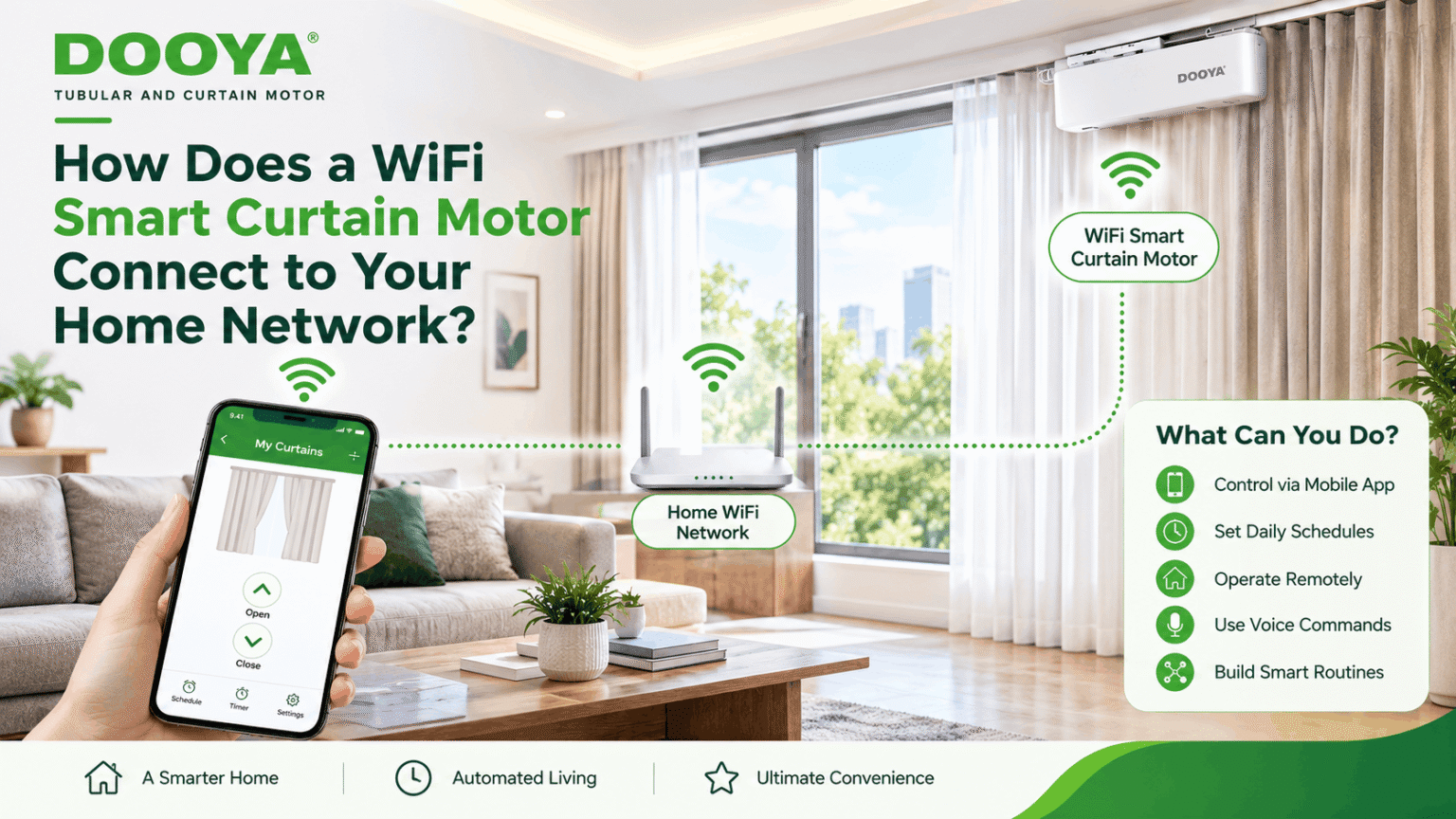
What if your curtains could follow your daily routine without you having to operate them manually? They could open as you wake up, close when the sun gets too bright, or respond to a simple command from your phone.
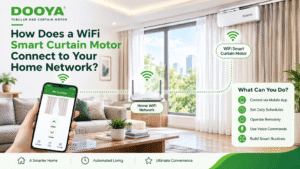
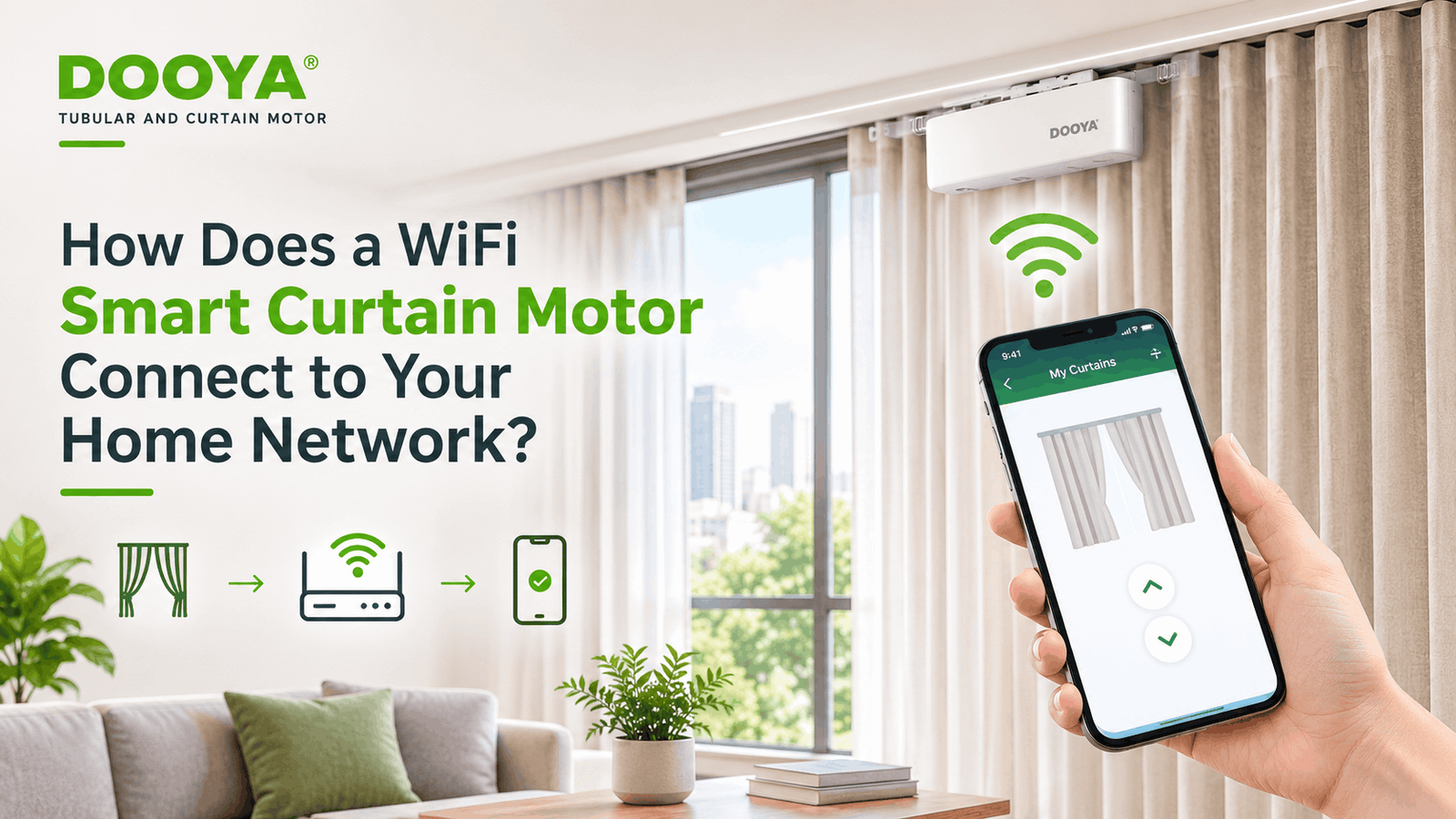
That’s what a WiFi smart curtain motor brings to your home. By connecting to your home WiFi network, it allows you to control your motorised curtains through a compatible app and enjoy features like scheduling, remote access, and voice control. Understanding how this connection works can help you make the most of your smart curtain setup.
What Is a WiFi Smart Curtain Motor?
A WiFi smart curtain motor is a motorised device that automates the opening and closing of your curtains. Instead of pulling them manually, you can operate them using a smartphone app, remote control, or compatible voice assistant. What sets it apart from a regular curtain motor is its ability to connect to your home WiFi network, giving you greater control over your curtains from almost anywhere.
You can also set schedules for automatic operation or include your curtains in smart home routines. Depending on the model, the motor may connect dire sets it apart from a regular curtain motor is its ability to connect to your home WiFi network, giving you greater control directly to WiFi or work through a compatible hub.
What Do You Need Before Setup?
A few things you’ll need include:
- A WiFi-Enabled Curtain Motor: Choose a smart curtain motor that supports app-based connectivity and is suitable for your curtain track.
- A Reliable Home WiFi Network: Check whether your motor requires a 2.4 GHz WiFi connection, as many smart curtain devices use this frequency for pairing.
- A Smartphone: You’ll need your smartphone to download the compatible application and connect the motor.
- Your WiFi Credentials: Keep your network name and password ready, as the app will ask for these details during setup.
- The Right Mobile Application: Install the app recommended for your motor to complete device pairing and access features like remote curtain control
How Does the WiFi Connection Work?
- Activate Pairing Mode: The motor enters pairing mode, making it discoverable to the compatible mobile application.
- Share WiFi Details: Once detected, the app asks you to enter your Home WiFi network name and password. The app shares these details with the motor.
- Connect to the Router: The motor uses these credentials to connect to your WiFi router and join your home network.
- Enable Smart Control: Once connected, the app can send commands to the motor, allowing you to open, close, and adjust your curtains remotely, depending on the system’s capabilities.
How to Connect a WiFi Smart Curtain Motor
Connecting a WiFi smart curtain motor is easier than it sounds. While the exact process may vary depending on the model, most motors follow these simple steps:
Step 1: Install and Switch On the Motor
Fit the motor onto its compatible curtain track, connect the power supply, and switch it on.
Step 2: Activate Pairing Mode
Press the designated button or follow the manufacturer’s instructions to activate WiFi pairing mode.
Step 3: Open the Mobile App
Launch the compatible mobile application, select ‘Add Device’, and choose your smart curtain motor.
Step 4: Connect to Your WiFi Network
Select your home WiFi network, enter the password, and allow the app to complete the connection. Ensure you’re using a supported WiFi band, commonly 2.4 GHz.
Step 5: Calibrate and Test
Set the curtain opening and closing limits if required. Test the motor through the app to ensure it responds correctly.
What Can You Do After Connecting It?
Depending on the model and its compatibility, you can enjoy features such as:
- Control Through a Mobile App: Operate your curtains from your smartphone without needing to reach for a traditional switch or remote.
- Create Daily Schedules: Automate curtain movements by setting preferred opening and closing times.
- Operate Curtains Remotely: Forgot to close your curtains before leaving? Use the app to manage them from outside your home.
- Enjoy Voice Commands: Connect with compatible voice assistants to open or close your curtains using simple spoken commands.
- Build Automation Routines: Combine curtain movements with other compatible smart devices to create personalised home settings.
Common Connection Problems
Here are some common problems to look out for:
- Incorrect WiFi Password: An incorrect password can prevent the motor from connecting. Double-check your network details before trying again.
- Unsupported WiFi Band: Some motors support only 2.4 GHz WiFi and may not connect to a 5 GHz network. Check your motor’s compatibility.
- Pairing Mode Issues: If the app cannot detect your motor, check whether pairing mode is activated correctly.
- App Permission Issues: Disabled bluetooth, location, or local network permissions may interfere with device discovery and pairing.
- Weak WiFi Signal: A poor connection between the router and motor can cause interruptions. Check the signal strength near the motor.
- Outdated App or Firmware: Older app versions or motor firmware may affect connectivity. Check for available updates and install them.
Tips for a Reliable Connection
A few simple practices can keep your smart curtains working efficiently and make everyday control more convenient.
- Maintain Strong WiFi Coverage: Ensure your motor receives a stable WiFi signal from your router to avoid connectivity interruptions.
- Keep Software Updated: Regularly update your mobile app, router, and motor firmware to maintain compatibility and performance.
- Use a Secure WiFi Password: Choose a strong password to keep your home WiFi network and connected devices protected.
- Check Network Compatibility: Ensure your router supports the WiFi frequency required by your curtain motor.
- Avoid Frequent Network Changes: Changing your WiFi name or password may require you to reconnect your motor.
Explore Dooya’s Smart Curtain Solutions
At Dooya, we bring together smart technology and everyday convenience through our range of motorised curtain solutions. From WiFi curtain motors to advanced control systems, our solutions allow you to operate your curtains through compatible mobile apps, remote controls, and voice assistants. With features like scheduling and smart home integration, managing your curtains becomes simpler and more convenient.
Ready to upgrade to smarter curtains? Explore Dooya’s range of curtain motors and automation solutions to find an option that fits your needs. Visit dooya.in or get in touch with our team to enquire about the right smart curtain solution for your home or workspace.
Conclusion
Connecting your WiFi smart curtain motor is just the beginning of a smarter curtain experience. With a compatible network and the right app, you can enjoy automated schedules, remote operation, and convenient voice control. It’s a simple upgrade that makes managing your curtains easier while adding another layer of convenience to your smart home.
Frequently Asked Questions
1. Does a WiFi smart curtain motor require a 2.4 GHz WiFi connection?
Most WiFi smart curtain motors support a 2.4 GHz WiFi connection for stable pairing and operation. However, check your motor’s specifications before setup.
2.Can I control a WiFi smart curtain motor when I am away from home?
Yes, depending on the motor and app compatibility, you can control your curtains remotely through a mobile application with an internet connection.
3.Can I connect a WiFi smart curtain motor to Alexa or Google Assistant?
Yes, compatible WiFi smart curtain motors can integrate with voice assistants like Amazon Alexa and Google Assistant, allowing you to operate curtains using voice commands.
4.What should I do if my WiFi smart curtain motor is not connecting?
Check your WiFi password, network compatibility, signal strength and app permissions. Also, ensure the motor is in pairing mode before attempting to reconnect.