

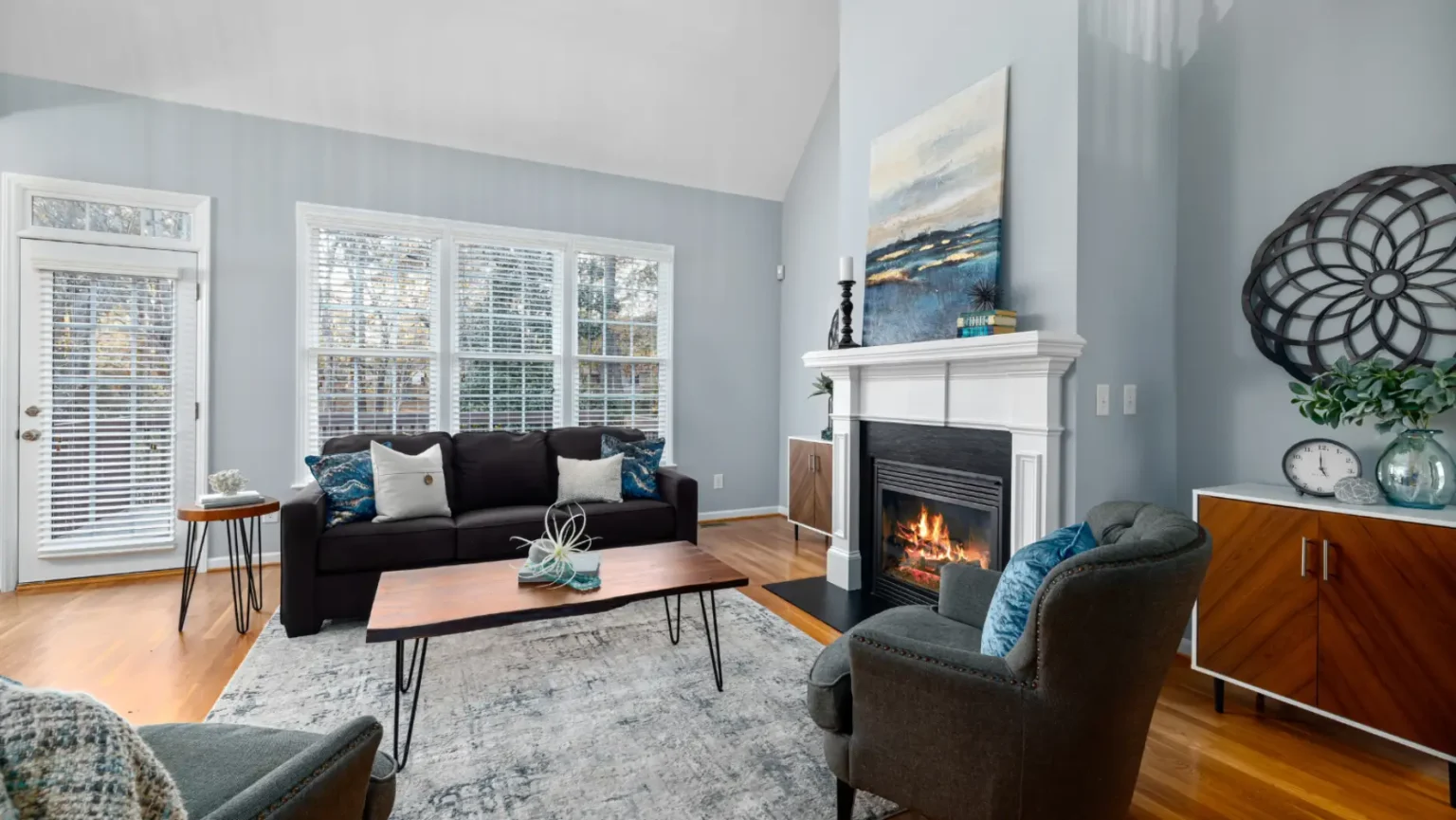
When your smart window blinds won’t connect to Wi-Fi, the first instinct is often to contact customer support right away. But in many cases, the solution is simpler than you might expect. Connectivity issues are often caused by minor glitches like temporary network interruptions, incorrect WiFi settings, or a quick pairing error. Before picking up the phone, it’s worth trying a few basic troubleshooting steps. A quick router restart, reconnecting the blinds through the app, or checking the WiFi band can often restore the connection within minutes.
Taking these small steps not only saves time but can also help you understand how your smart window blinds interact with your home network.
Common Reasons Smart Window Blinds Won’t Connect to WiFi
Weak or unstable WiFi signal
If the router is too far away or there are thick walls and obstacles between the router and the blinds, the signal may not be strong enough to maintain a stable connection.
Incorrect WiFi band
Many smart home devices, including motorised window blinds, are designed to work on a 2.4 GHz network. If your phone or router is set to 5 GHz during setup, the connection may fail.
Pairing or setup errors
During installation, the blinds must be in pairing mode to connect to the network. If the setup process is interrupted or done incorrectly, the device may not appear in the app.
Outdated app or firmware
If the control app or motor firmware hasn’t been updated in a while, compatibility issues can arise, preventing the window blinds from connecting properly.
Power supply interruptions
Low battery levels, loose cables, or power fluctuations can also cause smart blinds to disconnect from WiFi.
How to Fix Window Blinds WiFi Connection Issues?
Check the Power Supply of Your Smart Window Blinds
Smart window blinds rely on a consistent power supply to stay connected to your WiFi network. If the motor isn’t receiving enough power, the blinds may appear offline in the app or fail to respond to commands. Check whether the batteries need charging or replacing, and make sure any wired connections are firmly plugged in.
Ensure Your Router Supports Smart Window Blinds
Another important factor to consider is your router’s compatibility. Most smart window blinds connect through a 2.4 GHz WiFi network, which offers better range and stability for smart home devices. If your router is set to operate only on a 5 GHz band, the blinds may struggle to detect or connect to the network during setup. Checking your router settings and enabling the 2.4 GHz band can often resolve the issue instantly.
Restart the Router and Smart Window Blinds
If your window blinds still refuse to connect, a quick restart might be all that’s needed. Just like smartphones and laptops, routers and smart devices occasionally need a reset to clear temporary glitches. Start by restarting your WiFi router and waiting a few minutes for the network to stabilise. Then, power cycle the blinds by turning the motor off and on again or resetting the device according to the manufacturer’s instructions.

Fix Weak Signal Problems Affecting Window Blinds
Smart blinds are often installed near windows, corners of rooms, or higher sections of walls, which can occasionally place them at the edge of your router’s coverage. When the signal is weak or unstable, the blinds may disconnect from the network, appear offline in the app, or respond slowly to commands.
To fix this, start by checking how far your router is from the window blinds. If the router is located in another room or on a different floor, the signal may weaken before it reaches the motor or smart bridge.
Advanced App Troubleshooting for Persistent Blind Issues
If your window blinds are still refusing to connect even after checking the power and WiFi signal, the issue may lie within the control app itself. Since smart blinds rely heavily on the app to communicate with the motor and the network, even a small software glitch can interrupt the connection.
Start by making sure the app you’re using to control your window blinds is updated to the latest version. Developers regularly release updates to improve performance, fix bugs, and maintain compatibility with newer devices and routers. It’s also worth checking if the blinds’ firmware needs an update. Many smart home apps provide firmware updates for connected devices, and installing these updates can resolve connectivity issues or improve overall performance.
Check Smart Home Hub Compatibility
Smart window blinds often work as part of a larger smart home setup, which may include voice assistants, automation platforms, or a dedicated smart hub. If your blinds connect through a hub or bridge, compatibility between these devices becomes extremely important. When the hub firmware is outdated or not properly synced with the blinds, it can interrupt communication and prevent the blinds from appearing online in the app.
Start by confirming that your smart hub supports the specific model of window blinds you’re using. It’s also helpful to check whether the hub software is updated to the latest version, as updates often improve device compatibility and connectivity.
Power-Related Problems in Motorised Window Blinds
Sometimes, the reason your smart window blinds stop responding has nothing to do with WiFi; it could simply be a power-related issue. Motorised blinds require a steady power source to operate the motor and maintain communication with the app or smart hub. If the batteries are running low, the motor may struggle to stay connected to the network or may stop responding to commands altogether.
Checking the battery level or ensuring the power adapter is properly connected can often solve the issue quickly. Even a brief power interruption can cause the blinds to disconnect, so restoring a stable power supply is an important step in getting your window blinds working smoothly again.
When to Contact Customer Support for Window Blinds
If the problem continues even after checking the WiFi network, power supply, router settings, and app configuration, it may be time to reach out for professional support. Persistent issues could indicate something deeper, such as a motor malfunction, a faulty WiFi bridge, or a firmware compatibility problem that requires expert attention.
Customer support can assist with advanced troubleshooting steps that may not be covered in the user manual, including firmware resets, network reconfiguration, or motor calibration. If your window blinds are part of a larger smart home setup, the support team can also guide you on ensuring proper integration with your system.
Prevent Future WiFi Problems
Once your window blinds are back online and functioning smoothly, it’s worth taking a few proactive steps to prevent similar WiFi issues in the future. Smart devices rely heavily on a stable network environment, and a little maintenance can go a long way in ensuring that your blinds stay connected and responsive.
Start by keeping your router and smart device apps updated. Firmware updates are often released to improve connectivity, enhance security, and ensure compatibility with newer devices. Another important factor is maintaining strong WiFi coverage throughout your home. If your blinds are installed in areas that are far from the router, consider using a WiFi extender or mesh network to strengthen the signal.
It’s also a good habit to restart your router occasionally, especially if you notice smart devices becoming slow or unresponsive. Regularly checking battery levels or power connections can also help prevent sudden interruptions in motorised window blinds.

FAQs
Q1. Can too many smart devices on WiFi affect my window blinds’ connection?
Yes, it can, if your network is overloaded with multiple smart devices.
Q2. Do window blinds reconnect automatically after a power cut?
Usually yes. Once power and WiFi return, the window blinds reconnect on their own.
Q3. Can a guest WiFi network affect window blinds?
Yes. Guest networks may block communication with smart window blinds.
Q4. Will my window blinds schedules still run without WiFi?
Some schedules may still run if they are stored in the motor or hub.
Q5. Do window blinds use a lot of internet data?
No. Smart window blinds use very little data to send and receive commands.
Conclusion
Smart window blinds are designed to make everyday living simpler, letting you control light, privacy, and comfort with just a tap or voice command. So when they suddenly stop connecting to WiFi, it can feel frustrating. The good news is that many of these problems can be fixed quickly with a few basic checks. Whether it’s restarting the router, verifying network compatibility, or ensuring a stable power supply, these small troubleshooting steps can often bring your window blinds back online within minutes.
Choosing reliable motor technology also plays an important role in creating a seamless smart home experience. With well-designed automation solutions like those offered by Dooya, your motorised window blinds are built to deliver smooth performance, dependable connectivity, and effortless control.